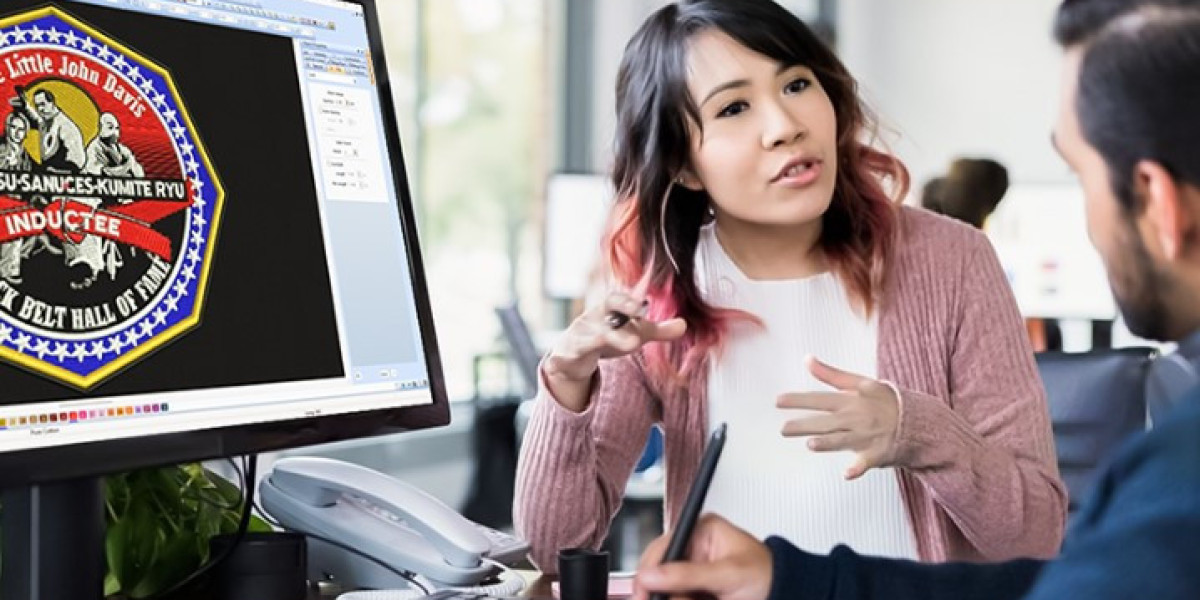

If you want clean, professional embroidery results, learning how to Convert Artwork to OFM File Format the right way is a must. OFM files are specially designed for Melco embroidery machines, and when done correctly, they preserve stitch flow, density, and design accuracy. The problem? A poor conversion can ruin stitch quality, distort shapes, and waste both time and materials. In this guide, I’ll break down everything you need to know step by step in a simple, casual, and practical way.
What Is an OFM File Format?
OFM is a proprietary embroidery file format used mainly by Melco embroidery machines. Unlike regular image files like JPG or PNG, OFM files store stitch data, including:
- Stitch direction
- Stitch type (satin, fill, running stitch)
- Density and underlay
- Color sequence
That’s why you can’t just “save” artwork as OFM. You need proper embroidery digitizing to translate artwork into stitches.
Why Stitch Quality Matters When Converting Artwork
Stitch quality isn’t just about looks; it directly affects production efficiency and garment durability. Poor-quality stitches can lead to:
- Thread breaks
- Puckering fabric
- Uneven fills
- Distorted text or logos
When you convert artwork correctly, your embroidery runs smoother, looks sharper, and lasts longer. That’s the difference between amateur and professional results.
Common Artwork Types Used for OFM Conversion
Before conversion, your artwork usually comes in one of these formats:
Vector Artwork
Vector files like AI, EPS, or SVG are ideal for embroidery digitizing because they scale without losing quality.
Raster Images
Formats like JPG, PNG, or BMP can still work, but they require cleanup and manual digitizing to avoid messy stitches.
Pro tip: The cleaner your artwork, the better your final OFM file will be.
Step-by-Step: How to Convert Artwork to OFM File Format
Let’s break the process into simple, actionable steps.
Prepare the Artwork Properly
Start with clean, high-resolution artwork. Remove unnecessary details, gradients, and tiny elements that won’t translate well into stitches.
Choose the Right Digitizing Software
Professional embroidery software is essential. Popular options include:
- Melco DesignShop
- Wilcom
- Pulse
- Hatch Embroidery
These tools allow you to manually control stitch types, density, and direction.
Assign Correct Stitch Types
Each design element needs the right stitch:
- Satin stitches for text and borders
- Fill stitches for large areas
- Running stitches for fine details
Wrong stitch selection is one of the biggest reasons stitch quality suffers.
Adjust Stitch Density and Underlay
Density controls how tight stitches are. Too dense causes thread breaks; too loose looks sloppy. Underlay stitches help stabilize fabric and improve coverage.
Set Proper Stitch Direction
Stitch direction affects texture, shine, and fabric pull. Consistent direction makes designs look clean and professional.
Convert and Export as OFM
Once digitizing is complete, export the design as an OFM file, ensuring it’s optimized specifically for Melco machines.
Mistakes to Avoid During OFM Conversion
Even experienced digitizers can make mistakes. Here are some common ones to avoid:
Auto-Digitizing Too Much
Auto-digitizing might seem convenient, but it often produces poor stitch paths and inconsistent density.
Ignoring Fabric Type
Different fabrics need different settings. What works on cotton may fail on caps or polyester.
Overcomplicating the Design
More detail doesn’t always mean better embroidery. Simplify where necessary.
Skipping Test Runs
Always run a stitch test before full production. It saves time, thread, and money.
Best Practices to Maintain Stitch Quality
To ensure top-notch results every time:
- Use vector artwork whenever possible
- Manually digitize key elements
- Match stitch density to fabric type
- Keep stitch lengths consistent
- Test designs on actual garments
These small steps make a huge difference in final embroidery output.
OFM vs Other Embroidery File Formats
You might wonder how OFM compares to other formats:
Format | Machine Type | Notes |
OFM | Melco | Advanced stitch control |
DST | Tajima | Widely supported but limited editing |
PES | Brother/Babylock | Home & commercial use |
EXP | Melco/Bernina | Older format |
OFM stands out because it supports more detailed stitch information for Melco systems.
When Should You Outsource OFM Digitizing?
If you’re dealing with complex logos, tight deadlines, or large orders, outsourcing can be the smarter option. Professional digitizers bring:
- Years of experience
- Advanced software
- Fabric-specific optimization
- Consistent, machine-ready results
This allows you to focus on production and business growth instead of technical headaches.
Final Thoughts
Learning how to convert artwork into embroidery files is a skill but mastering Convert Artwork to OFM File Format without losing stitch quality takes experience, patience, and the right tools. Whether you digitize in-house or outsource, always prioritize stitch quality, fabric compatibility, and proper testing.
If you want reliable, high-quality OFM digitizing that runs smoothly on Melco machines, many embroidery professionals trust Digitizing Buddy for clean stitches, accurate conversions, and production-ready results.